
We're aware of an issue where you turn on the glasses and turn on the processing device, wait about 20 seconds, but they don't automatically connect to each other and start captioning.
Following is a workaround to get the glasses and processing device working together again.
First, reset the "binding" information stored in the glasses.
-
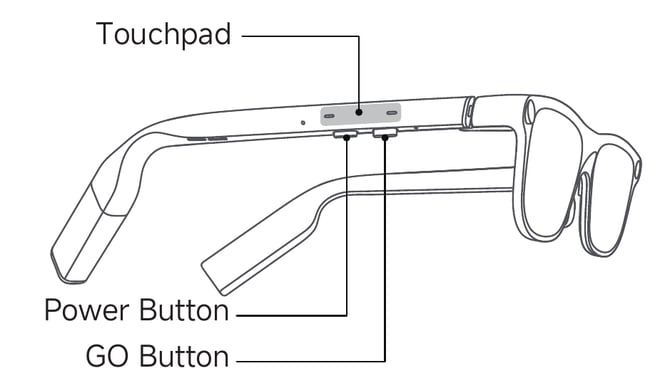
Wear the glasses and turn them on by holding the Power Button for 3 seconds and releasing.
- After a few seconds, you will see a horizontal row of icons with "INMO AI" in the center.
- Hold the Power Button down for about 6 seconds — until you see a row of four icons: Volume, Brightness, Unbind, and Power Off — then release the button. Notice that there is a rectangle drawn around the Volume icon on the left.
- Using the touchpad on the right arm of the glasses, swipe your finger from back to front along until the rectangle outline appears around the "Unbind" icon.
-
When the rectangle is around the "Unbind" icon, tap your finger once on the touchpad.
- You will now see a view with a question "Unbind device?" Swipe your finger from back to front on the touchpad to highlight the word "Unbind."
- Tap your finger once on the touchpad to reset the glasses' connection from the processing device.
Now remove the Bluetooth connection from the processing device, using the following steps:
- If your Xander Processing Device is off: turn it on by holding the power button until the "G" logo appears in the center of the screen.
- If your Xander Processing Device is already on: briefly click the power button to turn off the screen, and then click the power button again to turn the screen back on.
- Once you see the Xander logo on the screen, do not swipe up to open the Xander app. Instead, swipe one finger down from the top right corner of the device to reveal the control center:
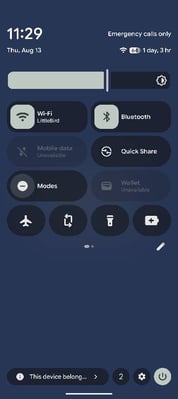
- Tap the Bluetooth widget to reveal the list of Bluetooth devices:
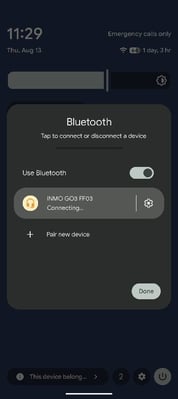
- Tap the Gear icon to the right of the INMO device in the list to access Device Details:
: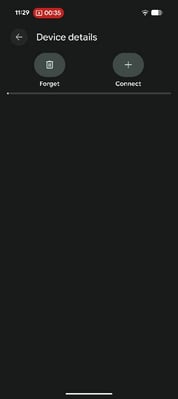
- Tap "Forget" and a pop-up box will appear:
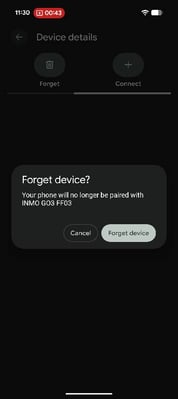
- Tap "Forget device" to erase your glasses connection from the Processing Device.
Reconnect your glasses to your processing device:
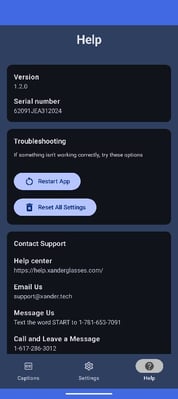
- In the Xander App, go to the Help Screen and tap the button "Reset All Settings"
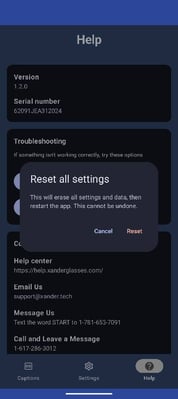
- A pop-window will appear. Tap Reset to continue.
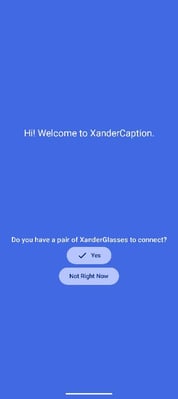
- You'll now see a Welcome screen asking if you have a pair of glasses you would like to connect. Tap "Yes":
- Once in the connection settings screen, please wait up to 30 seconds for the Glasses to appear, then tap "Connect"
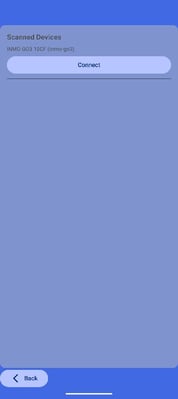
- A pop-up window will appear asking if you want to Pair with an INMO device. Tap "Pair."
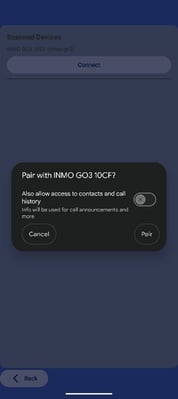
In less than 20 seconds, the glasses should now connect to the processing device and captioning may resume.
If you have any trouble with this process, please contact us at support@xander.tech and we will gladly assist.